My Linux desktop couldn’t find two printers that every Windows machine in the house uses without trouble. The fix took one service, two drivers and an address format nobody explains.
There is an old Windows 11 laptop in my study called cirdan. It does one job: two printers are plugged into it by USB, a Brother DCP-L2535DW laser and an Epson L8050 inkjet, and it shares them with the rest of the house.
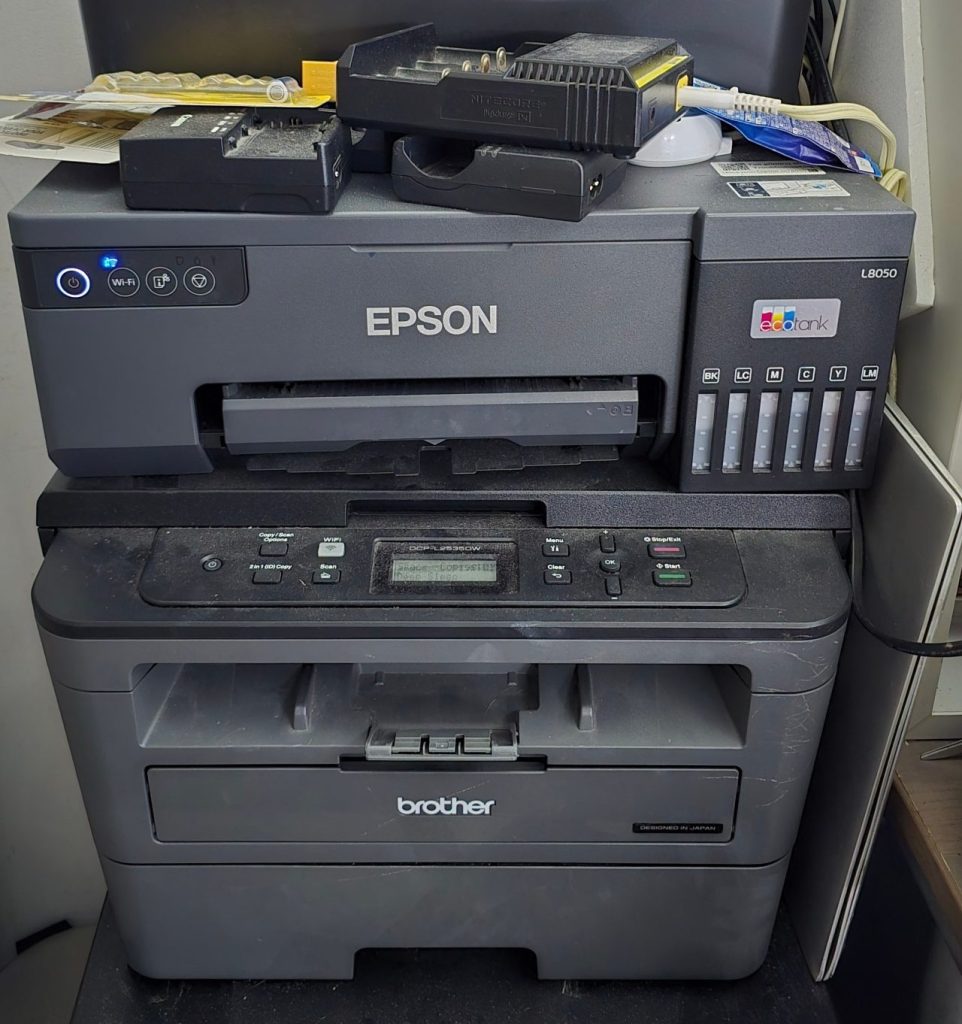
Windows machines on the network print to them without fuss. My Linux desktop, gilgalad, found nothing.
This post is how I got gilgalad printing to both, and why it doesn’t work the way you’d expect.
The Two Pieces You Need to Know
CUPS is the printing system on almost every Linux distribution. It holds a list of printers (it calls them queues), takes your print job, converts it into something the printer understands, and sends it on.
SMB is the Windows file and printer sharing protocol, the thing behind \\computer\share paths. On Linux, Samba speaks it, and the smbclient tool lets you poke at it from a terminal.
The job here is to get CUPS to send jobs over SMB to a printer that Windows is sharing.
Step 1: Find Out What the Print Server Offers
Before touching any settings, I checked which doors were open on cirdan. A printer can usually be reached three ways:
- IPP (port 631), the modern internet printing protocol
- LPD (port 515), an old Unix one
- Raw printing (port 9100), where you just pour bytes at the printer
All three were closed. The only things answering were Windows file sharing (ports 139 and 445), Remote Desktop, and Windows’ own device discovery. So SMB is the only way in.
Next, list the shares. My first try, without a username, was refused:
smbclient -L //192.168.50.20 -N
session setup failed: NT_STATUS_ACCESS_DENIED
That’s normal for a current Windows 11 machine. It won’t talk to anonymous guests. With a username (a Windows account on cirdan) it works:
smbclient -L //192.168.50.20 -U printuserSharename Type Comment
--------- ---- -------
print$ Disk Printer Drivers
Shared-Brother DCP-L2535DW series Printer Brother DCP-L2535DW series
Shared-EPSON L8050 Series Printer EPSON L8050 SeriesWrite down those share names exactly. Spaces, capitals, all of it. You’ll need them in Step 4.
If you see no printers here, sharing is switched off on the Windows side. On the Windows machine, go to Settings → Bluetooth & devices → Printers & scanners → your printer → Printer properties → Sharing, and tick “Share this printer”.
Step 2: Turn On CUPS
On my machine (CachyOS, an Arch Linux derivative) CUPS was installed but not running. Checking for printers gave me:
lpstat -t
scheduler is not running
Start it, and set it to start on every boot:
sudo systemctl enable --now cups.socketThe .socket version means CUPS starts the first time something asks for it, rather than sitting in memory all day.
Step 3: Get the Right Drivers
This is the part that catches people out, so it’s worth understanding.
When a Windows PC prints to a shared printer, the Windows PC does the hard work. Its own copy of the printer driver turns your document into the printer’s native language. The print server just passes those bytes along to the USB cable. It doesn’t convert anything.
Which means your Linux machine has to do that same conversion itself. You need a real driver for each printer on the Linux side.
You may have read that modern Linux can print without drivers (“driverless” printing, -m everywhere). That only works when the printer speaks IPP and can describe itself. A Windows share can’t do that. So for this setup, driverless is out.
On Arch-based systems both drivers I needed were in the AUR (the Arch User Repository):
paru -S epson-inkjet-printer-escpr2 brlaser- Epson L8050: Epson’s own ESC/P-R2 driver supports it by name.
- Brother DCP-L2535DW:
brlaseris an open-source driver for Brother lasers. Its list of supported models does not include the L2535DW. It does include the DCP-L2537DW, a sibling in the same family. I used that one, and the test page came out perfectly.
That kind of near-match is common with printer families. If the exact model isn’t listed, try its closest sibling before reaching for the manufacturer’s own Linux package.
Now find the exact name CUPS uses for each driver. Don’t guess these:
lpinfo -m | grep -iE 'l8050|l2537'drv:///brlaser.drv/brl2537d.ppd Brother DCP-L2537DW, using brlaser v6.2.8
Epson/epson-inkjet-printer-escpr2/Epson-L8050_Series-epson-escpr2-en.ppd EPSON L8050 SeriesThe first column is what you’ll pass to CUPS. (These files are called PPDs, PostScript Printer Descriptions. You don’t need to know more than that.)
Step 4: Add the Printers
A CUPS printer that lives on a Windows share has an address like this:
smb://USERNAME:PASSWORD@SERVER/SHARE-NAMETwo things trip people up:
- Spaces in the share name must be written as
%20.Shared-EPSON L8050 SeriesbecomesShared-EPSON%20L8050%20Series. - Special characters in the password must be encoded too. An
@in your password, for example, would otherwise be read as the end of the password. It has to become%40.
I made a mistake here that’s worth sharing. I copied the commands with the placeholder text still in them, and CUPS replied:
lpadmin: cups-driverd failed to get PPD file - see error_log for details.That error almost always means the driver name after -m is wrong. In my case, it was literally the words “brlaser L2537DW ppd from lpinfo”.
To avoid both problems, I wrote a small script. It asks for the password without showing it on screen, encodes it, and adds both printers:
#!/bin/bash
set -euo pipefail

HOST=192.168.50.20
USER_NAME=printuser

read -rsp "Password for $USER_NAME@cirdan: " PW; echo

# percent-encode the password for the smb:// address
enc=""
for ((i = 0; i < ${#PW}; i++)); do
  c=${PW:i:1}
  case "$c" in
    [a-zA-Z0-9.~_-]) enc+="$c" ;;
    *) enc+=$(printf '%%%02X' "'$c") ;;
  esac
done

lpadmin -p Brother-DCP-L2535DW -E \
  -v "smb://$USER_NAME:$enc@$HOST/Shared-Brother%20DCP-L2535DW%20series" \
  -m 'drv:///brlaser.drv/brl2537d.ppd' -o PageSize=A4

lpadmin -p Epson-L8050 -E \
  -v "smb://$USER_NAME:$enc@$HOST/Shared-EPSON%20L8050%20Series" \
  -m 'Epson/epson-inkjet-printer-escpr2/Epson-L8050_Series-epson-escpr2-en.ppd' -o PageSize=A4

lpadmin -d Brother-DCP-L2535DW
lpstat -t
Save it as add-printers.sh and run it with sudo bash add-printers.sh.
What the options mean:
-pis the name the printer will have on your machine. Pick anything without spaces.-Eenables the printer and tells it to accept jobs.-vis the address from above.-mis the driver name fromlpinfo.-o PageSize=A4sets the default paper. Leave it out if you’re on US Letter.lpadmin -dsets the default printer.
You’ll see a warning that “printer drivers are deprecated”. CUPS is slowly moving towards driverless printing everywhere, but drivers still work today. It’s not an error.
One caution: the password ends up stored in /etc/cups/printers.conf. Only the root user can read that file, but it is plain text. If you can, create a separate Windows account on the print server that exists only for printing, and use that instead of your main login.
Step 5: Print a Test Page
lp -d Brother-DCP-L2535DW /usr/share/cups/data/testprintThen check what happened:
lpstat -tIf the job vanishes and the page comes out, you’re done. The printers now show up in every application’s print dialog like any other printer.
If the job sits in the queue, look at the CUPS log for the reason:
journalctl -u cups -n 50The usual culprits are a wrong password, a share name that doesn’t exactly match what smbclient showed you, or printer sharing being switched off on the Windows side.
What I’d Tell Myself Before Starting
- Look before you configure. Five minutes checking which ports were open told me SMB was the only option. Skip that and you can lose an evening to settings that were never going to work.
- The Linux side needs the driver. A Windows print server passes data through untouched. Driverless printing won’t save you here.
- Use
lpinfo -m, not memory. Driver names are long and precise. Copy them, don’t type them. - A close-sibling driver is often fine. The DCP-L2537DW driver runs a DCP-L2535DW perfectly.